The starting point for participants
Open the existing group directory ↗Choose your organisation on the group directory and enter its own environment. A listing does not grant access to research data.
From a first field observation to a long-term research series. Obsfera connects your team, your own data structure and your research in a private environment.
Your organisation stays in control. Observers collaborate within their own group. A separate portal could connect selected research with followers.
Configuration, availability and administration of the installation.
Discover moreYour own teams, access permissions, data and research fields.
Discover moreA separate private portal for deliberately released publications.
Discover moreChoose your organisation on the group directory and enter its own environment. A listing does not grant access to research data.
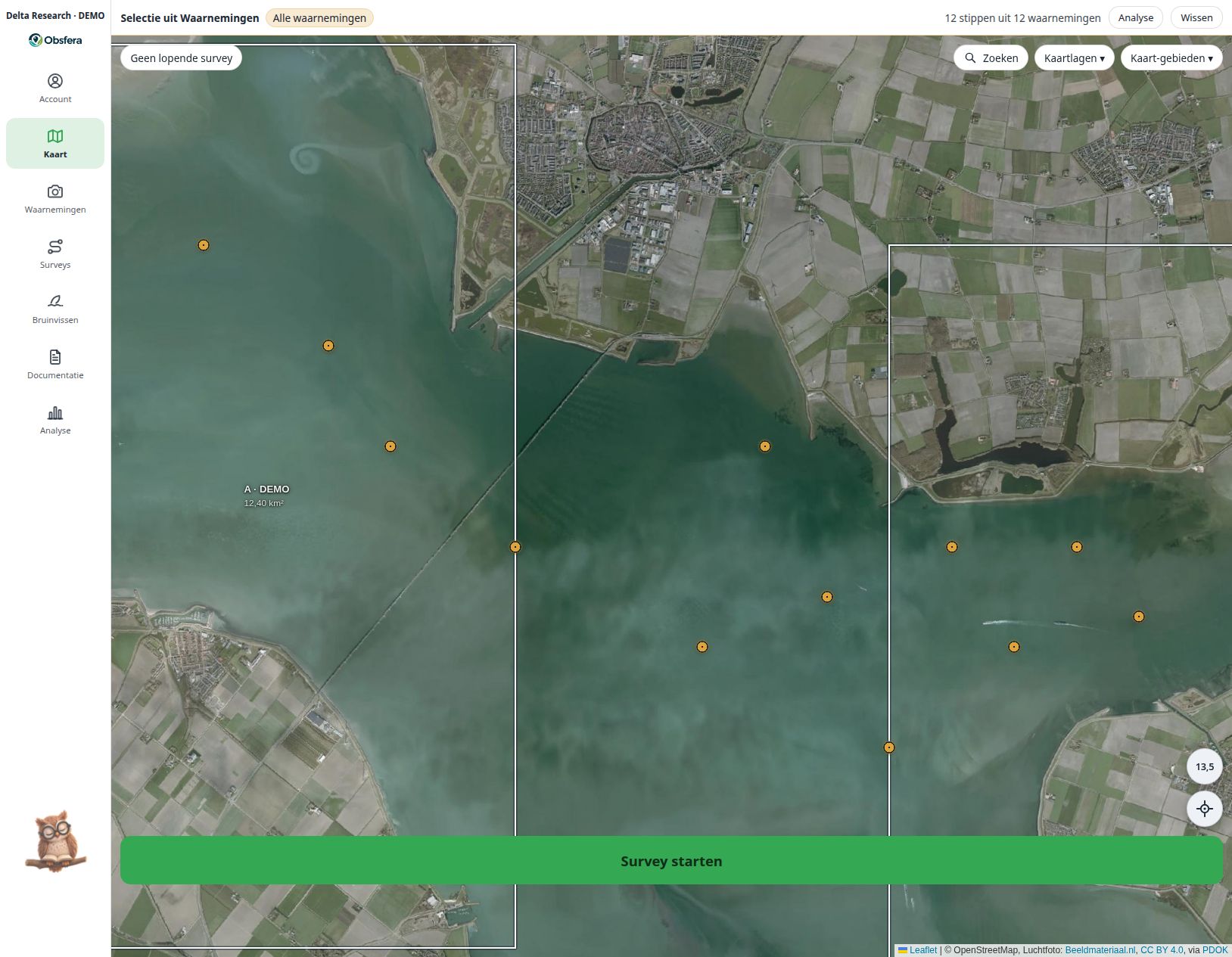
Combine observation points, survey tracks and sectors with a map or aerial imagery. Bathymetry adds channels and tidal flats: Rijkswaterstaat for the Oosterschelde relative to NAP, EMODnet for Dutch waters relative to LAT; these are not current water depths and are not for navigation.
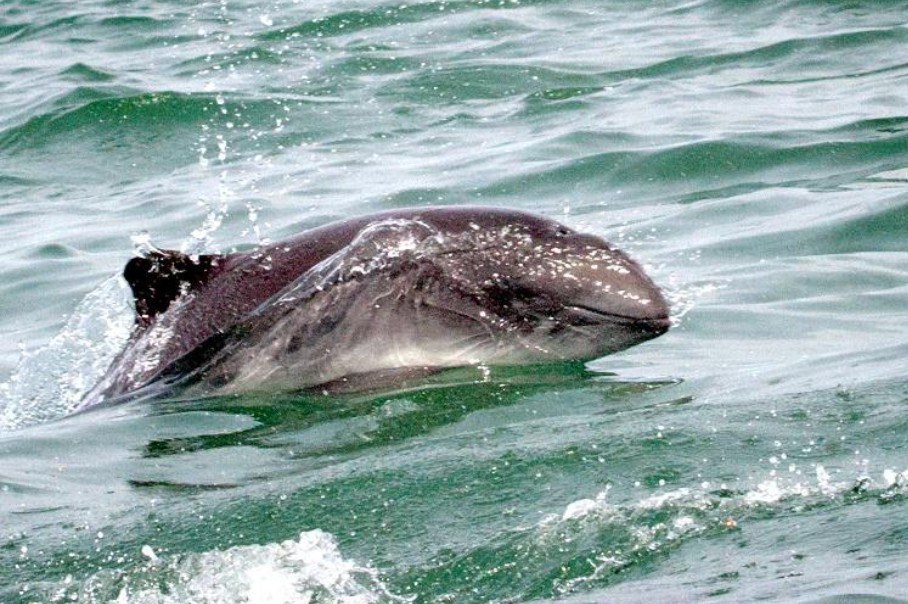 Delta-0110.10.2026 · Sector A · DEMO
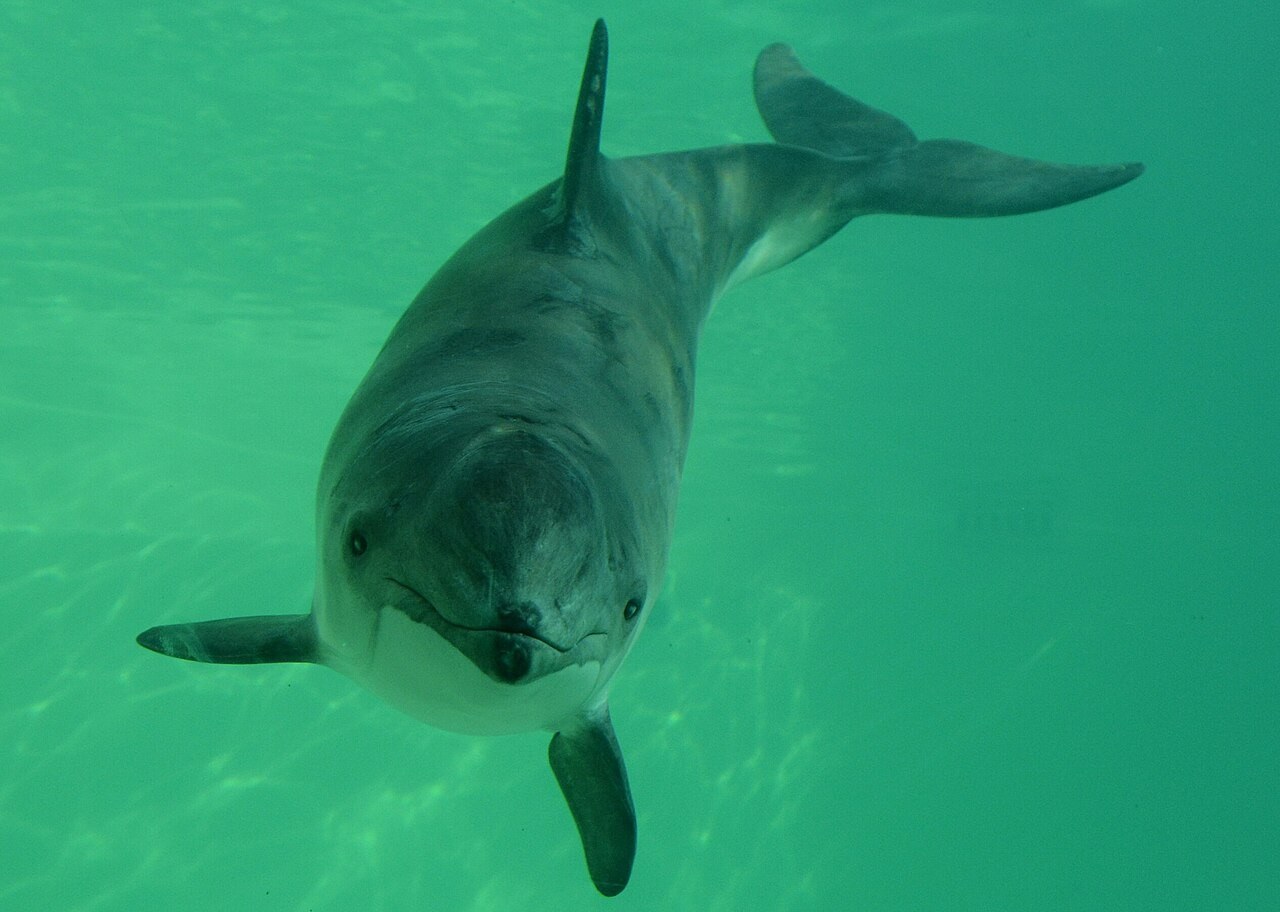 Delta-0211.10.2026 · Sector B · DEMO
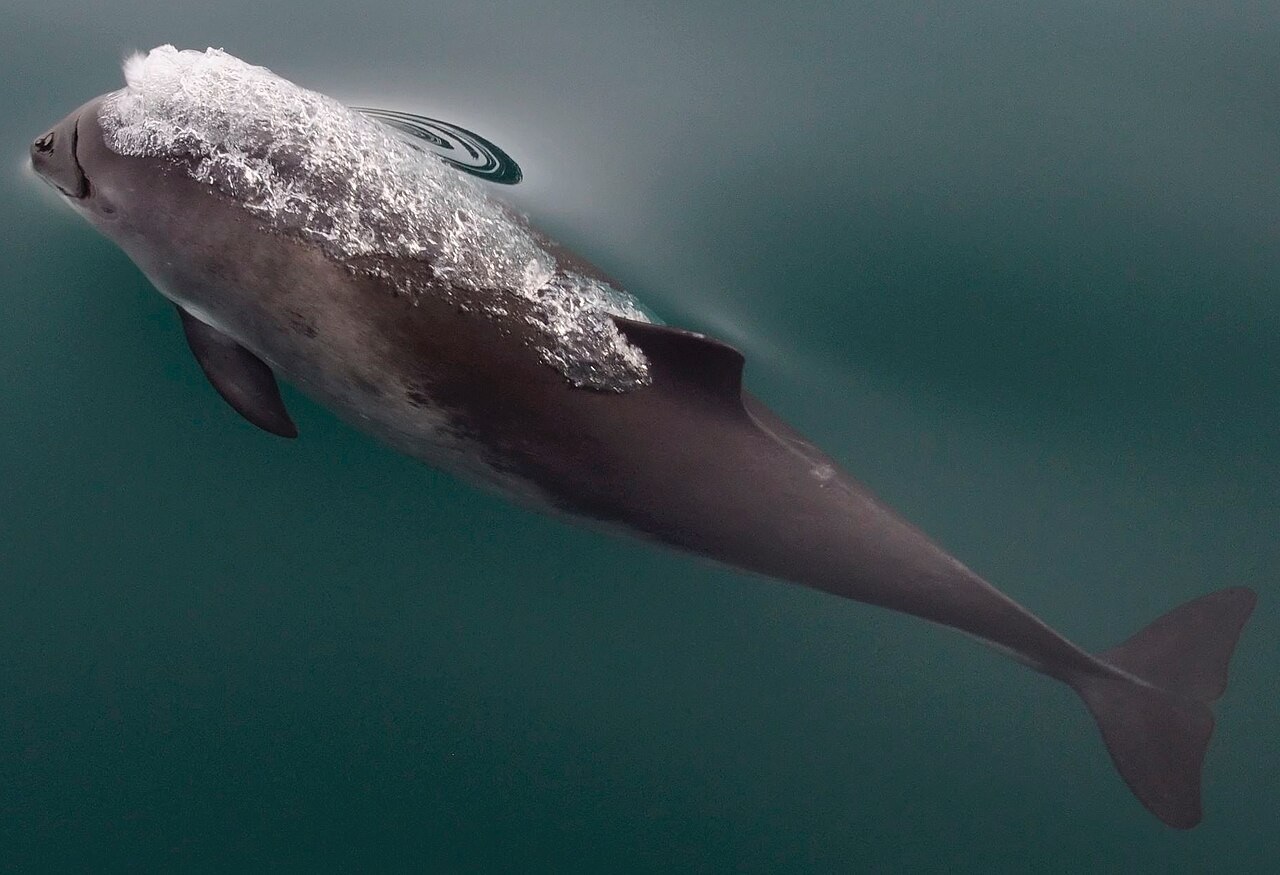 Delta-0312.10.2026 · Sector C · DEMO
 Delta-0413.10.2026 · Sector A · DEMO
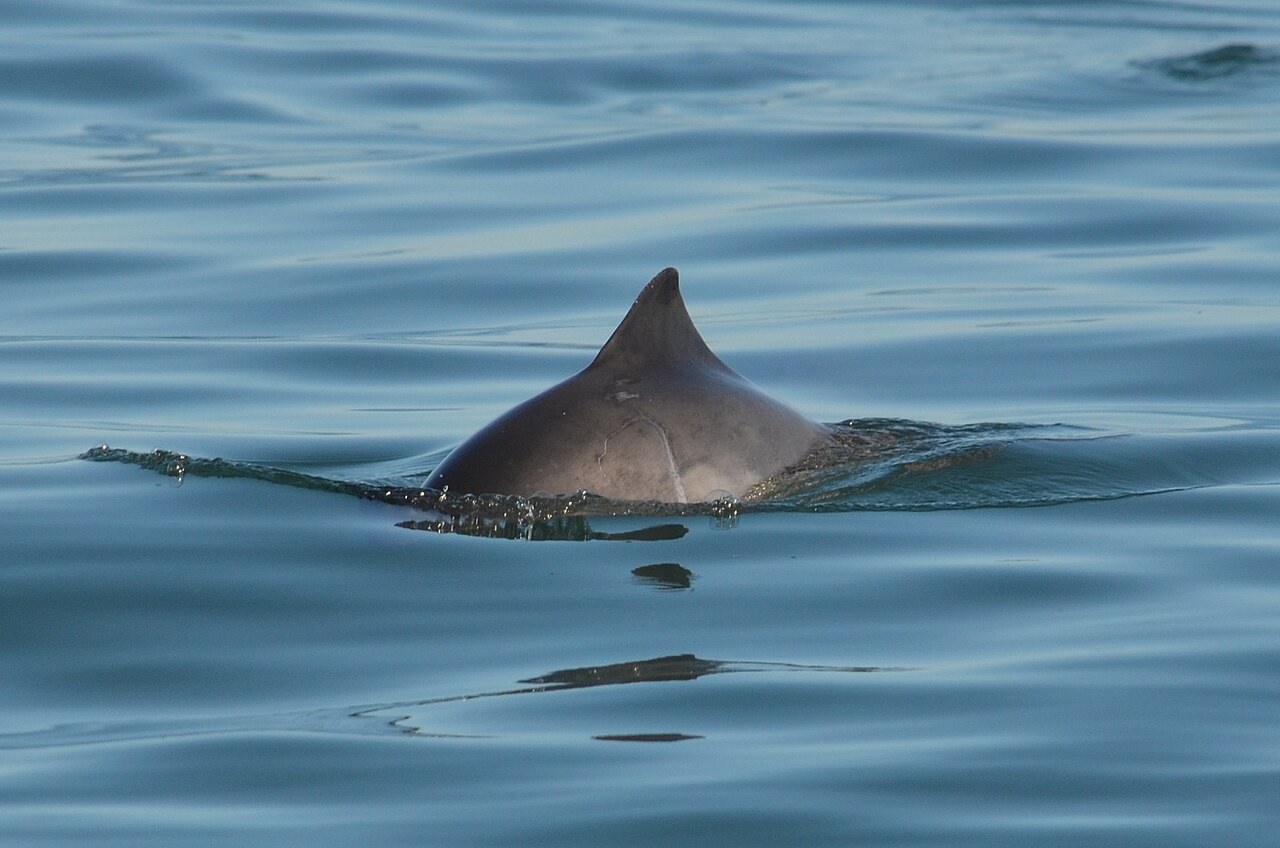 Delta-0615.10.2026 · Sector C · DEMO
Point at an amber animal marker, or tap it.
All example screens →
Obsfera adds available system data and keeps it with your research. Automatic data depends on the device, files and your group configuration.
Recording includes the time and an available GPS position. GPS requires permission and a usable position fix; missing data remains visibly missing.
The position determines the sector when it falls within a drawn sector boundary. New observations join the active survey; a manually selected sector is retained.
On upload, Obsfera reads available file metadata such as capture time, camera, lens and GPS. A photograph without this information cannot supply it.
Once automatic system lists are linked, the server enriches survey and observation fields with available weather and tide data. Time and position are required; tides depend on available Dutch monitoring stations and manual corrections are preserved.
The source remains visible alongside added weather data. Modelled weather and astronomical tides provide context rather than replacing field measurements.
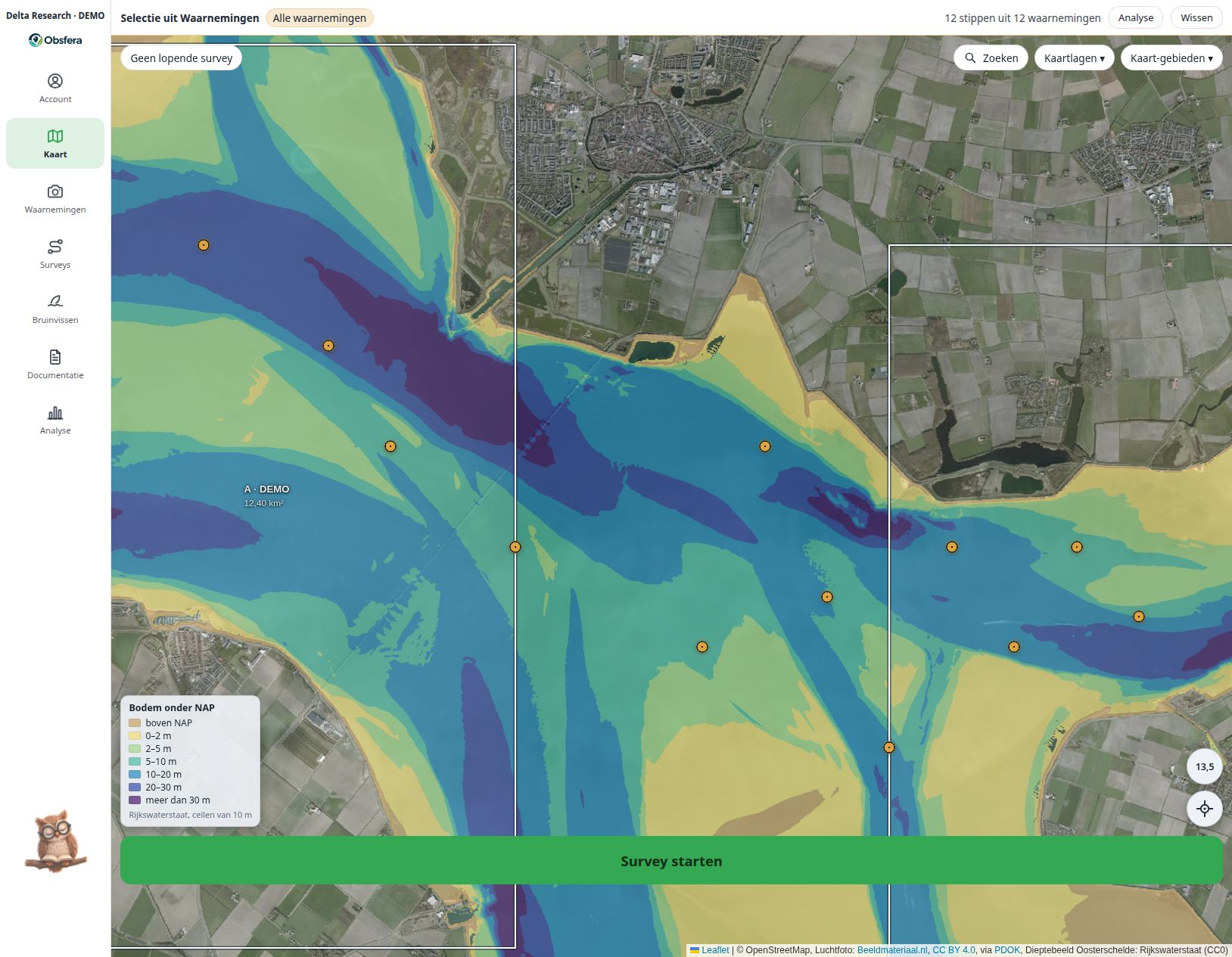 LAT / NAP · EXAMPLE INTERFACE · FICTIONAL DATA
Administrators configure metadata fields, lookup lists, groupings and overview columns around their research protocol. Fixed system fields and lists retain their meaning.
Use your organisation’s name, logo and available theme settings. Give the research workspace a recognisable identity.
Manage accounts and Guest, Observer and Admin roles, with separate permissions for functions including Support and export. Documents also have their own access profiles.
Draw sectors and map areas and set the initial view. The map functions you can change depend on the options made available by Platform Administration.
Administrators configure metadata fields, lookup lists, groupings and overview columns around their research protocol. Fixed system fields and lists retain their meaning.
Discover moreBrowse linked images in a gallery, open the viewer and compare identifying features with the animal register. Identification remains the researcher’s judgement; example images on this website are not scientific identification material.
Keep research reports, statements, archived emails or an autopsy report with the relevant animal, or as independent research documents. An access profile determines who may view each document; adding and accessing documents requires a connection.
Example animal record · not a real medical report
Photographs are existing public sample images, not images of the fictional animals or locations in the demonstration. Image sources & provenance ↗
The Obsfera owl helps new users find their way and explains individual features to experienced users. A welcome appears automatically on first sign-in; you then choose the tour you need.
The tour highlights buttons and fields step by step without saving research data for you. Reopen it later from your Account or by double-clicking the owl.
On larger screens, one click enables contextual help and the owl flies to your chosen information point. Phones show the welcome only; the guided tour needs more screen space.
Try it here: let the owl point out the screen examples. This interactive website demonstration uses fictional research data.
Authorised group members submit questions, requests and issues with attachments and discuss them through built-in chat. Status, change history and notifications keep the group involved; issue reports automatically include the app version, browser and screen size.
Discover moreThe research question and protocol shape the configuration.
Published changes can appear automatically after sign-in when both the group and the user enable this option. For visible changes, the owl takes you to the relevant feature; administrators can find the publication history under Updates & patches.

Explore how a dedicated research group could fit your protocol, team and long-term data stewardship.